Be sure to sign up for the weekly RV Travel Newsletter, published continuously every Saturday since 2001. Click here.
Showing posts with label droid. Show all posts

Sunday, August 19, 2012

CoPilot Live: an RV-Aware GPS for Mobile Phones and Tablets

by Jim Guld, www.geeksontour.tv
CoPilot Live Premium, North America Maps $14.99 for iOS and Android. For complete pricing and map availability, visit their website at www.copilotlive.com. There is a free version, but it does not offer voice-directed turn-by-turn instructions.
Technology can make travel a richer experience. Teaching technology to travelers is what Geeks On Tour is all about. We have been using GPS for navigation since we started RVing back in ’03. Keeping up with this stuff is a full time job and we love it. Visit us at www.geeksontour.tv.

Our Advice

Don’t get rid of your paper maps and atlases. Do get the CoPilot Live app for your mobile devices – we like it! It is available for Android phones and tablets, iOS iPhones and iPad 3G/4G, Windows mobile, and laptops, too. Be sure to read thru the excellent user guide available on their website under the Support menu.
clip_image002ALK, the company behind CoPilot has been in the business since 1979. They know what they are doing, and they do it well.
I first got the CoPilot app for my Droid RAZR phone and used it in our travels from Louisville, KY up through New Jersey, New York, and New England. While in Vermont, I bought the new Google Nexus 7 tablet. The main reason for getting the tablet was for navigation. This review is based on those 2 devices.
Stand-alone Dashboard GPS navigation tools have been around quite a while, and they still have their place. More and more I see them being replaced by general purpose devices like smartphones and tablets running navigation apps.

The Big Picture, Planning Vs. Navigating:

Size matters. So does distance. I still like planning our trips using a laptop and a combination of Microsoft Streets & Trips, Google Maps, and paper maps. The big laptop screen makes it easy to see and the information available is unprecedented. Navigation using the laptop requires a GPS receiver and a secure place to mount the laptop. It is much easier to mount a mobile device running CoPilot for navigation. I have decided that for me, the 7 inch screen is ideal for trip navigation. I attach it to our dashboard with a simple strip of Velcro.
I still use the free Google Navigation with voice search on my Droid for around-town driving, finding restaurants, stores, etc. It is always with me.
The Nexus 7, with its superior resolution, Android 4.1 OS, reasonable price, and responsive touch screen is a great way to go. And, unlike other Wi-Fi only tablets, it includes the GPS receiver. More on the Nexus 7 in an upcoming review.
Though you can use the app right after downloading, you will want to customize it for best results. Spend some time with the settings for the Map Display, Guidance, Traffic, Speed Limits, Language & Voice, etc.
clip_image004Vehicle Preferences are especially important for RVers. Height restrictions and Propane restricted tunnels are nice to see and are usually available only on higher end GPS units. We entered our RV height at 12’ 6” and it properly routed around some low bridges but not all. Admittedly, we’ve never seen so many low bridges as we did in Connecticut, none of our devices or other resources showed all of them.

The Pros: Almost too many to list. Here is a summary.

  • Great street maps which are stored on your device. No need for a data connection while navigating.
  • RV aware settings for height and propane.
  • Excellent spoken turn by turn directions – short and clear. Visual cues on the screen are easy to follow.
  • Trip planning is easy. Alternate routes are suggested. You have complete control to drag your route to exactly where you want.
  • Choice of 2D and 3D views, with or without directions on screen.
  • There are multiple ways of adding a destination. You can select a contact from your address book, pick a location on the map, input lat/lon coordinates, and even use a geotagged photo.
  • Price. It is inexpensive if you already have a device. It is worth buying a device just to have the app.
  • FREE Quarterly Map Update for All CoPilot Live Premium Android and iOS Customers

The Cons:

  • Sound is not as loud as most dedicated dashboard units. You can use Bluetooth or cable to your radio, if so equipped. I think I will get a new dashboard radio with Bluetooth capability for better volume.
  • The onscreen keyboard is flakey. Strange things sometimes happen when using it for input. Occasionally typing an entry just won’t work at all – pressing search enters your typing twice, or adds extra characters. This can only be called a bug. I have seen this mentioned in other reviews.  This needs to be fixed.
  • Discrepancies in maps and directions. No GPS Navigation or map is completely and absolutely accurate. This app is better than most, it did correctly route us around some low clearances, but not all. We are using the CoPilot Live Personal – not CoPilot Live Truck, which is available for $149. There is a way to send corrections to CoPilot. On their website, you’ll see a link to ‘Submit a Map Improvement.’ They guarantee that the corrections will be made within 45 days.
In conclusion, this is a great app for navigation and planning on your smartphone. It is even better on a tablet like the Nexus 7.

A Short Video Demo of CoPilot Live on the Nexus 7 Android Tablet


This tip brought to you by Geeks on Tour

Geeks on Tour is a membership website with hundreds of Tutorial Videos on topics of interest to travelers, such as using smartphones, managing digital photos with Picasa, Route-Planning with Streets and Trips, and sharing your travels with a website using Blogger. You can subscribe to our free enewsletter, or become a paid member and be able to view all of the videos in the Learning Library.

Tuesday, May 29, 2012

Renew your Verizon Unlimited Data Plan Now

verizon-logoLast year, I wrote an article, “Get your Verizon Droid or iPhone before July 7 (2011)” to urge new Verizon customers to act quickly.  Now, they’re at it again!  Last year, on July 7, Verizon ended the unlimited data plan for new customers.  This year (we don’t know exactly when) they will end it for existing customers.  Meaning, if you have an unlimited data plan now, when you upgrade your phone and sign a new 2 year contract, you will lose that unlimited data – there will be no ‘grandfather’ rights.  They will be implementing tiered and family sharing plans instead.  For more details, see this PCWorld Article.

So, if you are eligible for an upgrade, do it NOW.  I just upgraded my Droid1 for a new Droid Razr Maxx 4G (a great device!) yesterday, and they continued my unlimited data plan with no questions asked.  I now have unlimited Internet access for two more years. 

If you’re wondering why an unlimited plan is such a good thing, read my article from last year where I go into much more detail.  But, check out the current plan costs.  For $30/mo now you only get 2GB of data per month.  Although that’s enough for basic email and web-browsing on your phone, it’s not nearly enough if you like watching videos on your phone, or if you like to share your phone’s Internet connection with other devices – like many of us RV travelers do.

Current Verizon Pricing

verizon-plans

Although I believe that an unlimited data plan is worth fighting for, it’s not as important as it used to be.  It used to be that overages were charged at .25/megabyte.  That added up QUICK!  If you went over your allotment by just 1GB, your overage charge would have been $250!  Now, the overage fee is a flat $10/GB.  So, if you have the $30 for 2GB plan and you use 10GB in one month, your bill will be $110.  That’s bad, but not heart-stopping like the per megabyte charge.

This tip by Geeks on Tour: a membership website with hundreds of Tutorial Videos on topics of interest to travelers, such as how to use Android smartphones, managing digital photos with Picasa, Route-Planning with Streets and Trips, and sharing your travels with a website using Blogger or with friends on Facebook. You can subscribe to our free e-newsletters, or become a paid member and be able to view all of the videos in the Learning Library.

Thursday, April 12, 2012

Droid Smartphone for Navigation

google-navby Chris Guld, www.Geeksontour.TV

It’s a rare RVer that doesn’t use some type of GPS device to assist in navigation.  When we sold our house and hit the road in 2003, we used the Streets and Trips software on our laptop with a little USB GPS receiver.  A few years later we bought a Garmin dashboard GPS, then a Rand McNally RVND, and now a Magellan.  Those are all great devices and we use them all, but I like using my Droid smartphone with Google Navigation the best!  Why do I love it?  Let me count the ways:

  1. It’s in my hand.  I am in the passenger seat – this is not a good thing for a solo driver – but for a navigator, it is so comfortable to hold the device in your hand to be able to adjust your view, search for locations, or change settings.  When I have to manipulate the screen on a device that is mounted to the dash, I have to sit up in my seat and contort my body in order to see the screen and be able to properly use the controls.  If we’re using Streets and Trips on the laptop, that’s easier than the dashboard units, but it’s big and awkward.
  2. It’s fast.  My navigation advice is usually needed when Jim is driving according to the dashboard unit and he says something like, “this next turn doesn’t seem right, what should I do?”  I need to quickly get a birds-eye view of where we are vs. where we’re going, and evaluate the choices of how to get there.  With a simple pinch gesture, the Droid responds with what I need – instantly.
  3. It’s clear.  Even though it is a tiny screen, the resolution is so good that I can read every description and see every feature.  I can even turn on satellite view and see the trees, rivers, bridges, and buildings.  Any of the other devices seem almost childish in their graphics by comparison.
  4. It’s Google.  I can search … and find … anything.  Any campground, park, store, address, restaurant, or service – this is Google, it’s on the Internet and up to date.  Traffic information is quite reliable within about 15 minutes.
  5. It’s my smartphone.  My email is on there, so I can look up the email for the campground reservation and touch the address to navigate there, or call the phone number.  Or I can use my Passport America App to find a campground, then just touch ‘directions’ and my Google Navigation takes over with turn-by-turn voice directions to the exact address.  Or I can browse to the website for the Presidential Museum we want to visit – see an address on the web page, touch it, and choose Navigate to there.
    Here’s a short video showing how I can touch an address on email and then go straight to navigation:

It’s not perfect – nothing is!  The main drawback is that the information is coming from the Internet, so if you lose cell signal – you lose your maps.  There are ways to download your route in advance, but that requires that you know where you’re going … in advance!  We will not be getting rid of our dashboard units any time soon – and we still think Streets and Trips on our laptop is the best way to plan our travels – but Google Navigation on our Android smartphones is the clear favorite GPS navigation device for Geeks on Tour!

Want to learn more?  Come to our Techno-Geek Learning rally in Bushnell, Florida April 22-28, 2012.

This tip brought to you by Geeks on Tour

Geeks on Tour is a membership website with hundreds of Tutorial Videos on topics of interest to travelers, such as managing digital photos with Picasa, Route-Planning with Streets and Trips, and sharing your travels with a website using Blogger. You can subscribe to our free enewsletter, or become a paid member and be able to view all of the videos in the Learning Library.

Friday, August 5, 2011

Droid: From Email to GPS Navigation

by Chris Guld of www.GeeksOnTour.com  You know we love our Droids! This 'touch an address' feature, we just gotta show you. This is a very short video showing you how to simply touch an address and let Droid take you there!


Geeks on Tour is a membership website with hundreds of Tutorial Videos on topics of interest to travelers, such as managing digital photos with Picasa, Route-Planning with Streets and Trips, and sharing your travels with a website using Blogger. Members can view all of the videos in the Learning Library.

Sunday, May 29, 2011

3G vs 4G: The Tortoise and the Hare

We recently purchased a 4G mobile hotspot from Verizon.  It’s a tiny thing with magical powers.  With just one press of a button, it turns the immediate area around it into a Wi-Fi hotspot.  You can plug it into a power source, or it will run on batteries for about 4 hours.

image

A similar device, called the Mi-Fi, has been around for a couple of years, but those are 3G only.  The 4G Mi-Fi is coming soon.

What does 4G Mean?

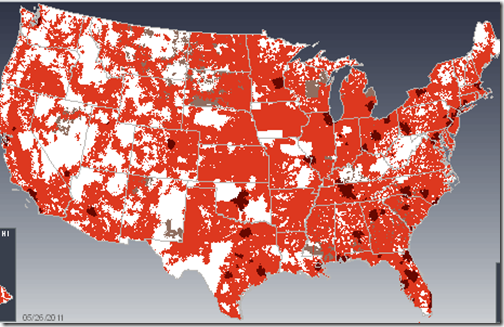
Without getting unnecessarily technical, we are talking about the technology that Cellular communications companies use to deliver wireless Internet connectivity. The ‘G’ stands for ‘Generation’ so 3G is third generation technology and 4G is fourth generation technology.  4G is better.  It’s faster and it goes farther.  That’s the good news.  The bad news is that it exists only in limited areas.  Below is Verizon’s coverage map, 4G is represented by the dark splotches, the red is 3G coverage, and the white is no coverage at all.

image

How Fast is 4G?

We live in our motorhome and happened to be staying in a friend’s driveway in Franklin, Tennessee, just south of Nashville.  It is a solid 4G area – and it was exciting to use our 4G connection.  Click a link – you’re there.  Watch a video all the way thru – no hesitations.  What a joy!  For those of you who like numbers, I ran a speed test using testmy.net and here’s the result:

image

Read that as 9 1/2 Megabits/per second.  A really good 3G speed would be 500Kbps – that’s 500 Kilobits/second, or 1/2 Megabit/per second.  We were browsing the Internet at 20 times normal speed!  We never wanted to leave.  This was not only 4G, but it was extra fast 4G.

The 3G signal available from our same location was horrible.  It was extra bad 3G. Here’s a screen shot of that speed test:

image

That’s just over 1/4 Mbps!  Our spot in Franklin, Tennessee is the poster child for why you want a new 4G device.  With it, using the Internet was a joy. Without it was torture.

Data Limits

In the Tortoise and the Hare, the blazing fast bunny runs out of energy.  With our blazing fast 4G Internet connection, we quickly ran out of our data allotment.  Our mobile hotspot device was on a $49/mo plan for 5 Gigabytes of data transfer.  After one week and 4 Gigabytes of usage, we changed our plan to the $80/mo for 10 Gigabytes of data.  Today, May 28, we’re at 9.88 Gigabytes.  We’re in Ohio now, outside of any 4G area and we’re using our 3G Droid cellphones, tethered to our computers for Internet access.  Verizon’s penalty for going over our allotment really isn’t too bad – $10/Gigabyte of overage.  If we were still in the good 4G area that had lousy 3G, we would probably pay the overage.

To Buy 4G or Not to Buy 4G

If you’re going to buy a cellular wireless Internet device now anyway, why not get 4G as long as it also does 3G?  Notice the lights in my picture above of our mobile hotspot – there’s a 4G indicator light as well as a 3G indicator.  If it can’t find any 4G signal, it will connect with a 3G.  If you have a 3G only device – you’ll be very disappointed in Franklin, Tennessee!

If you aren’t already planning on buying such a device, then it’s a harder decision.  Is it worth upgrading when 4G is still so rare?  Pay close attention to the coverage map for your provider before deciding.  Geeks like us just gotta have it!

Your Mileage May Vary!

Don’t take any speed test, or anyone else’s (even ours!) experience as gospel.  Speeds vary from minute to minute, mile to mile, and computer to computer.  This story is useful just to let you know how drastic the speed difference *can* be between 3G and 4G.

by Chris Guld, Geeks on Tour

Geeks on Tour is a membership website with hundreds of Tutorial Videos on topics of interest to travelers, such as managing digital photos with Picasa, Route-Planning with Streets and Trips, and sharing your travels with a website using Blogger.  Members can view all of the videos in the Learning Library.

Saturday, April 9, 2011

Tethering your Smart Phone for Internet Access

As RV travelers, you need to learn lots of different ways to connect to the Internet.  There's Wi-Fi, Satellite, and Cellular as the three categories of mobile Internet access.  But, within each of these categories there are *LOTS* of choices.

Cellular Internet Service
Cellular has become the most popular method of connecting, and it is getting better with every new cell tower installation or upgrade.  Verizon is the most popular service among RVers because they generally have the best coverage as you travel.  You can buy USB cellular modems to plug into your computer or router, you can buy a Mi-Fi which is a small, standalone device that creates a personal Wi-Fi hotspot.  Then, your computers, iPods, iPads, printers, etc. can connect to it.

Geeks on Tour Tether their Droid
We (Jim and Chris of Geeks on Tour) plan to get the new 4G Mi-Fi real soon now ... but for now, we're using our Droid smart phone to tether to our computers for Internet service.  The video below was recorded last summer on the road and we demonstrate how we tether the Droid.  For more information, see our website page on Wireless Internet.

This is one of our 'Gabbing with the Geeks' video blogs.  It's from summer 2010.